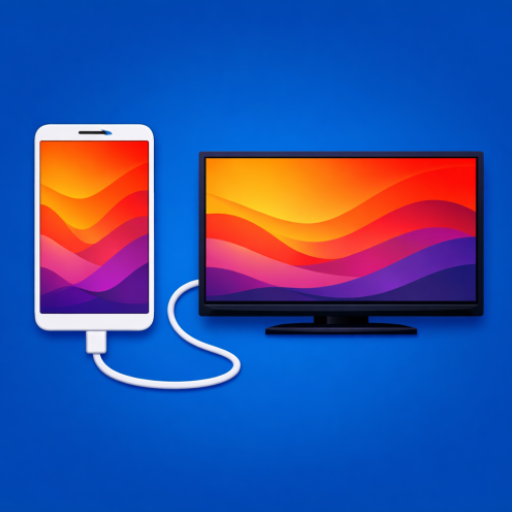
What is a Wired HDMI Phone Connection?
Connecting your Android phone to a TV via HDMI means running a physical cable from your phone's USB-C port directly to your TV's HDMI input. Unlike Chromecast, Miracast, or AirPlay — which all rely on Wi-Fi — a wired HDMI connection sends video and audio directly through the cable.
The result: zero buffering, zero compression, zero wireless interference. What your phone renders, your TV displays — instantly, at whatever resolution your phone and cable support.
Most modern Android phones (released after 2019) include a feature called DisplayPort Alt Mode on their USB-C port. This is what allows the USB-C port to output video over a standard HDMI cable using a simple adapter or cable.
Not all USB-C ports support video output. A USB-C port that charges your phone or transfers files is not automatically capable of video output — it must specifically support DisplayPort Alt Mode. We cover how to check this below.
When Should You Use HDMI Instead of Wireless?
Wireless casting (Chromecast, Miracast, Smart TV screen mirror) is convenient for quick sessions at home. But there are many situations where a wired HDMI connection is significantly better:
- You need zero lag. Wireless casting introduces 100–500ms of delay. For presentations, gaming, or fast-motion video, that lag is noticeable and annoying.
- You want true 4K quality. Wireless casting compresses video heavily. HDMI carries the full uncompressed signal — every pixel, every frame.
- There's no Wi-Fi available. Hotels, conference rooms, friends' houses, vacation rentals — anywhere without a reliable network, wired HDMI just works.
- You need a private, secure connection. Wireless casting routes through networks. A cable is point-to-point: your phone directly to your TV, no middleman.
- Your wireless setup keeps dropping. If you've ever had Chromecast stutter mid-movie, you know the frustration. Wired eliminates that entirely.
6 Real Use Cases for Phone-to-TV HDMI
Play downloaded videos, streaming content, or local files from your phone on the big screen in full 4K — no compression, no buffering.
Hotel TVs almost always have HDMI ports. Carry a cable and you can turn any hotel room TV into your personal entertainment setup — no hotel Wi-Fi needed.
Display slides, documents, or demos from your phone on any HDMI-connected screen. No laptop required. Perfect for meetings and classrooms.
Show your camera roll, vacation photos, or family albums on a big screen at full resolution — every detail preserved, no Wi-Fi slideshow lag.
Play mobile games on a large display without input lag. Wired output means the TV responds in sync with your touch — not 300ms later.
Route your phone's music library through your TV's sound system. Great for parties or anywhere you want room-filling audio from a single cable.
Does Your Phone Support HDMI Output?
This is the most common question — and the answer depends on your specific device, not just its USB-C port. Here's how to figure it out:
What is DisplayPort Alt Mode?
DisplayPort Alt Mode (also called DP Alt Mode) is a feature that allows a USB-C port to carry video signals alongside data and power. When your phone has DP Alt Mode, it can output its display to an HDMI TV through a simple passive USB-C to HDMI cable or adapter.
Which phones support it?
Many flagship and mid-range Android phones support DisplayPort Alt Mode, including:
- Samsung Galaxy — S8 and later, Note series, most Tab tablets
- Google Pixel — Pixel 4 and later (varies by model)
- OnePlus — Most models from OnePlus 7 onwards
- Xiaomi — Select flagship models
- Sony Xperia — Most Xperia 1 and 5 series
- LG — V-series and G-series flagships (before LG exited mobile)
Budget phones, many mid-range devices, and some flagships do not support DisplayPort Alt Mode even though they have a USB-C port. A USB-C port that only charges or transfers data will not output video. Always check before buying a cable.
How to check your specific phone
The fastest way is to use the built-in compatibility checker inside Screen Cast HDMI USB Connector. Open the app and it immediately tells you whether your device supports wired HDMI output — no guesswork, no manual research.
What You Need
The setup is simpler than most people expect. You need just three things:
- An Android phone with DisplayPort Alt Mode — confirmed using the compatibility checker above.
- A USB-C to HDMI cable — make sure it specifically states "DisplayPort Alt Mode" or "4K video output" support. Generic USB-C to HDMI cables that don't mention video output will not work.
- A TV with an HDMI input — virtually every TV sold in the last 15 years has at least one HDMI port.
You don't need an active adapter, a powered hub, or any special dongle. A simple passive USB-C to HDMI cable is enough for most phones — as long as it's rated for video output. They're widely available for under $15.
Step-by-Step: How to Connect Your Phone to a TV via HDMI
Open Screen Cast HDMI USB Connector and run the built-in compatibility checker. It scans your device and tells you instantly whether DisplayPort Alt Mode is supported.
Pick up a USB-C to HDMI cable rated for video output (DisplayPort Alt Mode). If you want 4K, make sure the cable is rated for 4K/60Hz. Most cables that support video output will state this on the packaging.
Connect the USB-C end into your phone's charging port. Connect the HDMI end into any HDMI port on your TV. Note which HDMI port number you used (e.g., HDMI 2).
Use your TV remote and press the Input or Source button. Select the HDMI port you just plugged into. Your phone's display should appear on the TV within a few seconds.
In Screen Cast HDMI USB Connector, choose what you want to cast — a video file, your photo gallery, or your music library. The content plays on your TV in full resolution, instantly.
Common Issues and Fixes
TV shows "No Signal" after plugging in
- Make sure you've selected the correct HDMI input on your TV (the one the cable is plugged into).
- Try a different HDMI port on your TV.
- Confirm your phone supports DisplayPort Alt Mode — if it doesn't, the TV will never get a signal from that cable.
- Try unplugging and re-plugging the cable while the TV input is already selected.
Cable plugged in but no video output
- Your cable may not support video output. Cheap USB-C to HDMI cables often only support charging, not DP Alt Mode. Replace with one that explicitly supports video output.
- Some phones require you to enable "Desktop mode" or "DeX mode" before the HDMI port activates. Check your phone's display settings.
Video is mirrored but audio plays from the phone
- Go to your phone's Settings → Sound → and set audio output to HDMI. On some phones this switches automatically; on others it needs a manual change.
- The HDMI cable carries audio — make sure your TV volume is turned up and not muted.
Video quality looks low or soft
- Your cable may not support 4K. Check the cable's specs — it needs to support 4K/60Hz for full quality.
- Some phones default to 1080p output even on a 4K cable. Check display output resolution in your phone's developer settings or the app's quality settings.
If your phone turns out not to support DisplayPort Alt Mode, Screen Cast HDMI USB Connector also includes a Wi-Fi browser casting option as a fallback. It's not zero-lag like wired, but it works on any device with a browser-capable screen.
The Easiest Way: Screen Cast HDMI USB Connector
While you can mirror your phone to a TV with just a cable, having the right app makes the experience significantly better. Screen Cast HDMI USB Connector by Appfairly is designed specifically for this use case — trusted by over 2 million users worldwide, with a 4.4-star rating across 26,000+ reviews.
Here's what it adds on top of a basic cable connection:
- Built-in compatibility checker — know instantly if your phone supports HDMI output before buying a cable.
- Optimized media browser — browse and cast your video files, photos, and music directly from within the app, without fumbling through your phone's file system on the big screen.
- 4K resolution support — the app is optimized for full 4K output when your phone and cable support it.
- Wi-Fi casting fallback — for devices that don't support DisplayPort Alt Mode, the app offers browser-based wireless casting as a backup.
- No account required — install it, plug in your cable, and you're done. No sign-up, no subscription, no ads.